Diskflag / Guides / Best disk space analyzers for Windows
The best disk space analyzers for Windows
WizTree is best for raw speed, WinDirStat is the best free and open-source option, TreeSize is best for an Explorer-style tree and pro or business features, SpaceSniffer is the best portable free treemap, and Diskflag is best for knowing which folders you can safely delete. If you don't want to install anything, Windows' built-in Settings > Storage is the zero-install option. This guide covers Windows 11 and 10.
A disk space analyzer, also called a disk usage analyzer or hard drive space analyzer, scans a drive and shows which folders and files take the most room. Most draw a treemap, where bigger rectangles mean bigger folders.
I make Diskflag, so it is on this list. I give it the same pros and cons as the others, and I send you to a competitor where it fits better. Each tool section links to the vendor's own page.
How do the tools compare?
| Tool | Price | How it shows space | Flags what's safe to delete | Speed approach | License |
|---|---|---|---|---|---|
| WizTree | Free for personal use. Commercial use needs a Supporter Code, from $25 | Tree view plus treemap, largest files | No documented recommendations | Reads the NTFS MFT as administrator | Proprietary |
| WinDirStat | Free | Treemaps, sunbursts and flame graphs, file-type statistics | Cleanup tools you run; no automatic recommendations, as far as documented | MFT scan since 2.5.0, when run elevated | Open source, GPL v3 or later |
| TreeSize | Free for home use. Personal $25.20 per user per year. Professional from $49 per user per year | Explorer-style tree, plus pie, bar and treemap charts | Not listed | Not stated | Free edition for home, non-commercial use; paid editions |
| SpaceSniffer | Free, donations welcome | Zoomable treemap with filters by type, size and age | Not listed | Not stated | Freeware, portable |
| Diskflag | $8 once, no subscription | Cushion-shaded treemap, three folder levels deep, with a side panel | Yes: pink, pink stripes and dashed outline | Standard Windows file APIs, not the MFT | Paid, one-time |
| Windows Settings > Storage | Included with Windows | Usage by category | Cleanup recommendations by category | Not stated | Part of Windows |
Is WizTree the right pick for raw speed?
WizTree is a free disk space analyzer that reads the NTFS Master File Table (MFT) directly when run as administrator. That is why it is so fast. It shows a tree view plus a treemap, lists the largest files, finds duplicates and exports to CSV.
Best for: getting a full picture of a big drive as fast as possible.
Pros
- Reads the MFT, which makes it very fast
- Free for personal use
- Tree view, treemap and largest-file list
- CSV export
Cons
- Commercial use needs a Supporter Code: Individual $25, Micro (up to 5 staff) $100, Small (20) $200, Medium (50) $350, Large (100) $500
- Proprietary
- No documented cleanup recommendations
- The duplicate finder matches by name, size and date, not content
Source: diskanalyzer.com and the WizTree guide. Pricing: diskanalyzer.com/donate. Latest version 4.33, September 16, 2026.
Is WinDirStat the best free and open-source option?
WinDirStat is free and open source under GPL v3 or later. The latest release is 2.9.3, from October 11, 2026. It draws treemaps, sunbursts and flame graphs, and shows file-type statistics and largest-file lists. Dark mode arrived in 2.5.0.
Since 2.5.0 it can scan the NTFS MFT directly when run elevated. It also has cleanup tools, duplicate detection and custom cleanup commands that you run yourself. It runs on Windows 7 through 11. For a longer list, see WinDirStat alternatives, or WizTree vs WinDirStat for a direct comparison.
Best for: anyone who wants a free, open-source tool with several chart types.
Pros
- Free and open source
- Treemaps, sunbursts and flame graphs
- MFT scanning when run elevated
- Duplicate detection and custom cleanup commands
Cons
- No automatic safe-to-delete recommendations, as far as documented
- The fast MFT scan needs an elevated run
Source: github.com/windirstat/windirstat, its releases and changelog.
Is TreeSize worth it for an Explorer-style tree?
TreeSize, from JAM Software, pairs an Explorer-style tree with pie, bar and treemap charts. TreeSize Free costs $0 for home, non-commercial use. The latest free version is 4.8.1, from November 20, 2025.
TreeSize Personal costs $25.20 per user per year, and a perpetual license is also available. TreeSize Professional starts at $49 per user per year and adds bulk actions plus duplicate and large-file search. There is a 14-day trial.
Best for: an Explorer-style tree, and pro or business features.
Pros
- Explorer-style tree plus pie, bar and treemap charts
- A free edition for home use
- Professional adds bulk actions and duplicate and large-file search
- 14-day trial
Cons
- The free edition is for home, non-commercial use only
- Paid editions are priced per user per year, from $25.20 (Personal) to $49 and up (Professional)
- No safe-to-delete flags listed
Source: jam-software.com/treesize and the TreeSize Free changelog.
Is SpaceSniffer a good portable treemap?
SpaceSniffer is freeware and portable, with donations welcome. It shows a zoomable treemap and lets you filter by type, size and age. The listed version is 2.2.0.27. The vendor doesn't publish a release date.
Best for: a portable, free treemap you can run without installing.
Pros
- Free and portable
- Zoomable treemap
- Filters by type, size and age
Cons
- No safe-to-delete flags listed
- The vendor doesn't publish a release date for the current version
Source: uderzo.it SpaceSniffer page.
Can Windows Settings > Storage do the job without installing anything?
Partly. Open Settings > System > Storage to see usage by category and Cleanup recommendations: temporary files, large or unused files, files synced to the cloud and unused apps. Disk Cleanup (cleanmgr) still exists too.
Storage Sense is off by default and cleans the system drive only. The built-in view stops at categories, so it can't show which individual folders are large. The steps are in how to free up space on your C drive.
Best for: a quick check with nothing to install.
Pros
- Built into Windows and free
- Cleanup recommendations for temporary, large, unused and cloud-synced files and unused apps
- Storage Sense can clear temp files automatically
Cons
- Shows categories, not a map of every folder
- Storage Sense is off by default and covers the system drive only
Source: Microsoft on freeing up drive space and Storage Sense.
Which analyzer tells you what is safe to delete?
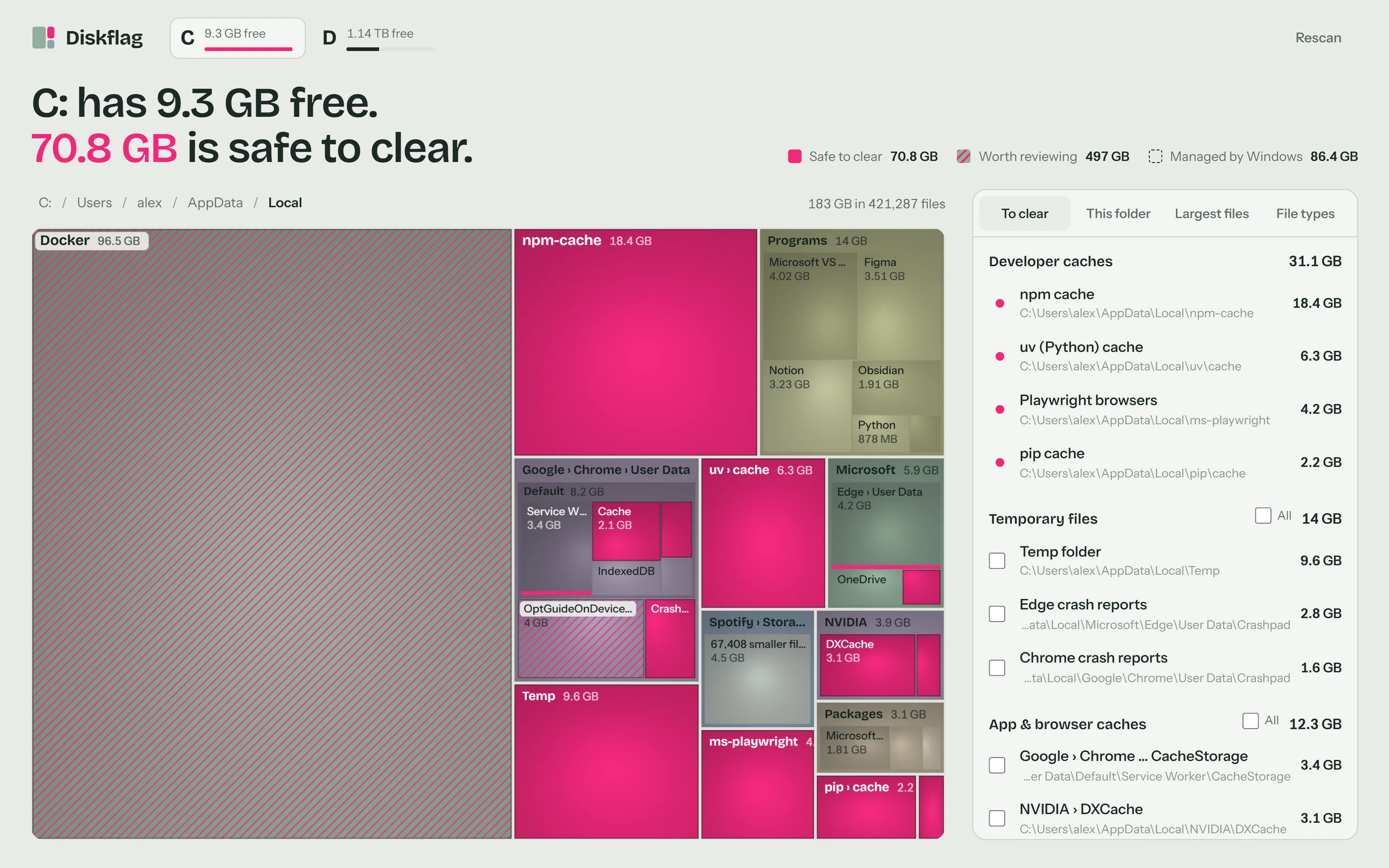
Diskflag is a disk space analyzer for Windows 10 and 11. It maps a whole drive as a treemap and flags what's safe to clear. Pink means safe to clear. Pink stripes mean worth reviewing. A dashed outline means managed by Windows: the page file, hibernation file, update leftovers and restore points.
It flags Windows system files, temp files, developer caches (npm, pnpm, pip, Gradle, Cargo and others), Docker and WSL virtual disks, build folders such as node_modules, browser and app caches, AI models, games, large videos, old installers and likely duplicates. For each flagged item it gives the exact fix: move it to the Recycle Bin, copy a cleanup command, or open the right Windows setting.
It only moves items to the Recycle Bin, after you confirm. It refuses Windows system folders, Program Files, the drive root and your main profile folders. It counts size on disk, so compressed, sparse and OneDrive cloud-only files are counted correctly. See what's safe to delete on Windows 11 for the reasoning behind each category.
On my own 1 TB C: drive, with 4 GB free, Diskflag flagged 84 GB as safe to clear, 457 GB as worth reviewing and 78 GB as managed by Windows. A full scan of that drive, 4.9 million files, took about 3.5 minutes the first time and about 2.8 minutes on a rescan. That is slower than WizTree, because Diskflag doesn't read the MFT.
Best for: knowing which folders you can safely delete.
Pros
- Three markings: safe to clear, worth reviewing, managed by Windows
- An exact fix for each flagged item
- Only moves items to the Recycle Bin, after you confirm
- Runs offline, with no account and no telemetry
- 12 MB zip, no installer
- $8 once, with a 14-day refund
- Folders appear and grow on the map while it scans
Cons
- Slower than WizTree
- Paid, where WinDirStat, SpaceSniffer and personal-use WizTree are free
- Windows only, no Mac yet
- Not code-signed yet, so SmartScreen shows a notice the first time
- No scheduled or automatic cleanup
- No network-share scanning
Source: diskflag.com and pricing. Speed figures are from my own PC, not an independent benchmark.
How do you choose?
- You want the fastest scan. Use WizTree and run it as administrator.
- You want free and open source. Use WinDirStat.
- You want an Explorer-style tree, or business features. Look at TreeSize. Professional starts at $49 per user per year.
- You want a portable treemap. Use SpaceSniffer.
- You want to know what's safe to delete. Use Diskflag. It is the only tool here that marks items as safe to clear and gives the fix.
- You don't want to install anything. Start with Settings > Storage.
The tools combine well. A free analyzer shows where the space went, and Diskflag tells you which of those folders you can clear. Diskflag costs $8 once; see pricing for what's included.
Find out what you can safely delete.Diskflag is a disk space analyzer for Windows 10 and 11. It maps your whole drive, flags what's safe to clear in pink, and only ever moves things to the Recycle Bin. $8, once.
See how it worksQuestions
What is the best disk space analyzer for Windows 11?
It depends on what you need. WizTree is best for raw speed, WinDirStat for free and open source, TreeSize for an Explorer-style tree, SpaceSniffer for a portable free treemap, and Diskflag for knowing which folders you can safely delete.
Which disk space analyzer is the fastest?
WizTree is the pick for raw speed. It reads the NTFS MFT directly when run as administrator. WinDirStat also scans the MFT since version 2.5.0 when run elevated. Diskflag uses standard Windows file APIs, so it is slower than WizTree. A full scan of my 1 TB C: drive with 4.9 million files took about 3.5 minutes.
What is the best free disk space analyzer?
WinDirStat is free and open source under GPL v3 or later. WizTree is free for personal use. TreeSize Free is $0 for home, non-commercial use. SpaceSniffer is freeware and portable.
TreeSize vs WizTree: which should I use?
Pick WizTree if speed matters most. It reads the NTFS MFT when run as administrator. Pick TreeSize if you want an Explorer-style tree, or the business features in TreeSize Professional. Both have free versions for personal use.
What is the best tool to see disk usage as a treemap?
WinDirStat, WizTree, SpaceSniffer and Diskflag all draw treemaps, and TreeSize offers treemap charts. SpaceSniffer is a portable, zoomable treemap with filters by type, size and age. Diskflag adds pink flags on folders that are safe to clear.
Is there a cheaper alternative to TreeSize Professional?
TreeSize Professional starts at $49 per user per year. Diskflag costs $8 once with no subscription, and WinDirStat is free. They are different products, so compare the features you need before you switch.
Does Windows have a built-in disk space analyzer?
Yes. The Storage page in Settings shows usage by category and Cleanup recommendations. Disk Cleanup still exists too. Neither draws a treemap of your folders.
Which disk analyzer tells me what is safe to delete?
Diskflag marks safe-to-clear items in pink, items worth reviewing with pink stripes, and Windows-managed files with a dashed outline. WizTree has no documented cleanup recommendations, and WinDirStat gives you cleanup tools but no automatic safe-to-delete advice, as far as documented.
Is Diskflag safe to run if Windows shows a SmartScreen warning?
Diskflag is not code-signed yet, so SmartScreen asks for More info, then Run anyway, the first time. The app runs offline with no account and no telemetry. It only moves items to the Recycle Bin after you confirm.
Do I need to run a disk space analyzer as administrator?
For WizTree and WinDirStat, administrator rights enable the fast NTFS MFT scan. Diskflag does not need them. Running it as administrator is optional and lets it read other users' folders and protected folders.