Diskflag / Guides / Free up space on your C drive
How to free up space on your C drive in Windows 11
To free up space on your C drive in Windows 11, first find out what's using it, then clear the things Windows and your apps rebuild on their own: temp files, the Recycle Bin, Windows Update leftovers, the hibernation file and app caches. The 11 steps below go from safest to most involved, and none of them touch your personal files.
When my own 1 TB C drive dropped to 4 GB free, the culprits weren't photos or documents. They were a 112 GB Docker disk, a 65 GB page file, a 20 GB npm cache and a 12.8 GB hibernation file. Most full drives look like that: the space goes to things that grow quietly in the background.
1. See what's actually using the space
Open Settings > System > Storage. Windows lists usage by category (apps, temporary files, documents) and shows Cleanup recommendations for temporary files, large or unused files, cloud-synced files and unused apps.
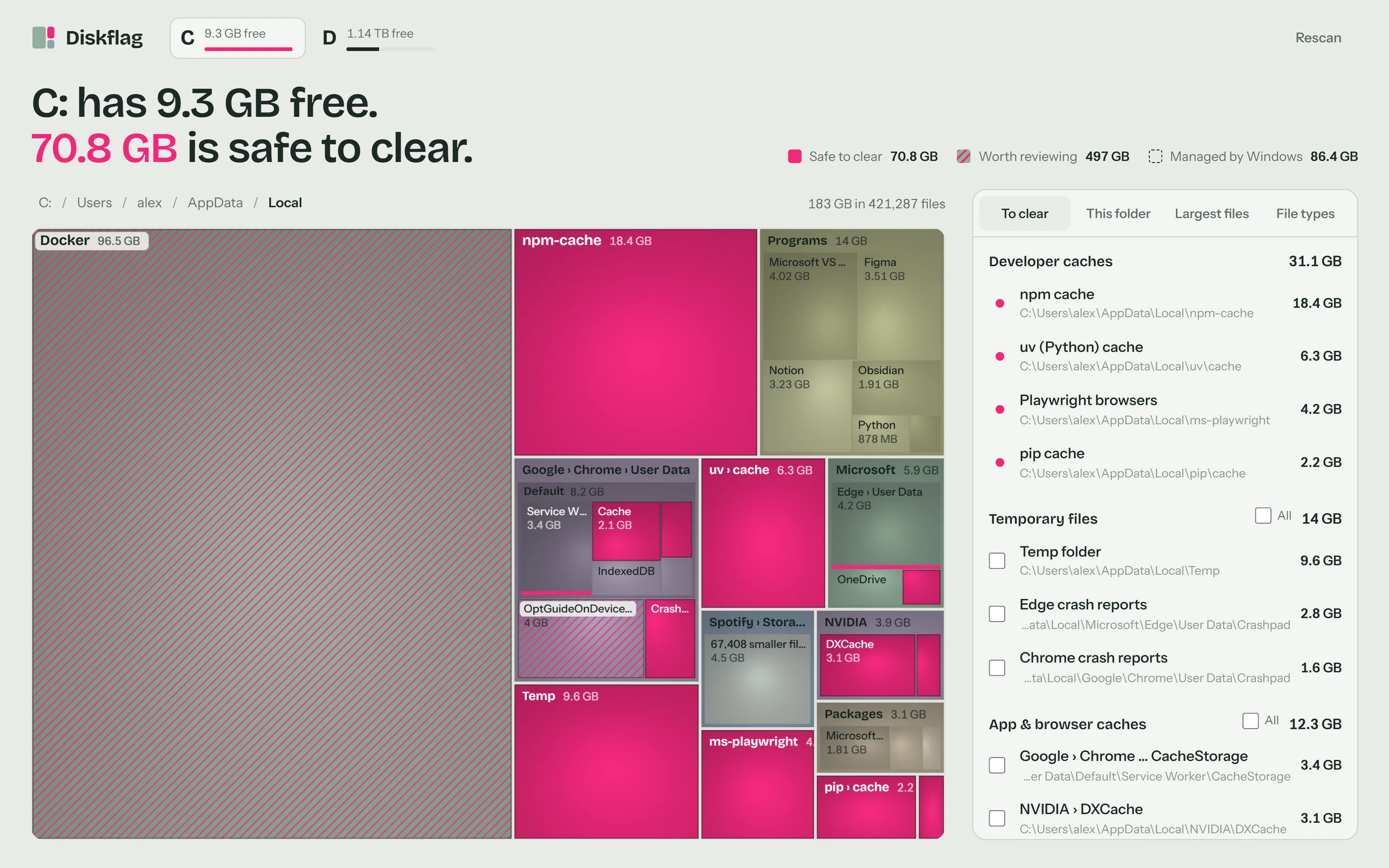
Windows' view stops at categories. To see exactly which folders are large, use a disk space analyzer that maps every folder by size. Diskflag does this and also flags what's safe to clear; free options like WinDirStat and WizTree show sizes without the recommendations. See the best disk space analyzers for Windows for a comparison.
2. Empty the Recycle Bin
Deleted files still take up space until the Recycle Bin is emptied. Right-click the Recycle Bin on your desktop and choose Empty Recycle Bin. Check it first if you might need something back.
3. Clear temporary files
Go to Settings > System > Storage > Temporary files, tick the categories you want and click Remove files. Leave Downloads unticked unless you've checked that folder.
You can also open %TEMP% from the Run box (Windows + R) and delete what's inside. Close your apps first; anything in use will be skipped, which is fine.
4. Remove Windows Update leftovers with Disk Cleanup
- Search for Disk Cleanup and choose drive C.
- Click Clean up system files and choose C again.
- Tick Windows Update Cleanup and, if you upgraded recently and don't plan to roll back, Previous Windows installation(s).
The previous installation (the Windows.old folder) is often 20 GB or more. Removing it means you can no longer roll back to the earlier version of Windows.
5. Turn on Storage Sense
Storage Sense is off by default. Turn it on under Settings > System > Storage > Storage Sense and Windows will clear temp files and old Recycle Bin items automatically. It only cleans the system drive.
6. Uninstall apps and move games you don't play
Sort Settings > Apps > Installed apps by size and uninstall what you don't use. Games are usually the biggest items: a single modern game can take 60 to 150 GB.
If you have a second drive, move games with the launcher instead of uninstalling them. In Steam, go to Settings > Storage and use Move. In the Xbox app, open the game's Manage page and choose Move.
7. Shrink the hibernation file and the page file
hiberfil.sys stores your memory when the PC hibernates. If you never use hibernate, open Terminal as administrator and run powercfg /h off. That deletes the file and also turns off Fast Startup. To keep Fast Startup but shrink the file, run powercfg /h /type reduced.
pagefile.sys is managed by Windows and can grow very large on PCs with lots of memory. To cap it, open System Properties > Advanced > Performance Settings > Advanced > Virtual memory, untick automatic management and set a custom size. Restart afterward. Don't delete either file directly.
8. Clear developer caches
If you write code, package-manager caches can reach tens of gigabytes. They download again when needed:
| Tool | Command |
|---|---|
| npm | npm cache clean --force |
| pnpm | pnpm store prune |
| Yarn | yarn cache clean |
| pip | pip cache purge |
| uv | uv cache clean |
| NuGet | dotnet nuget locals all --clear |
| Go | go clean -modcache |
Old node_modules and .venv folders in projects you no longer work on can go too; reinstall them with one command if you return.
9. Prune Docker and compact WSL disks
Docker Desktop and WSL store everything in virtual disk files that grow but never shrink on their own. Run docker system prune to remove stopped containers, unused networks, dangling images and build cache. Add -a to also remove images no container uses.
Pruning frees space inside the disk file, not on your drive. To get it back, quit Docker, run wsl --shutdown, then compact the disk file with diskpart (select vdisk file=<path>, then compact vdisk).
10. Move big files off the C drive
Large videos, photo libraries and old installers in Downloads are easy wins. Move media to another drive, or turn on OneDrive Files On-Demand so synced files stay online until you open them.
11. Check System Restore space
Restore points are hidden from every app, so they never show up in folder sizes. On my drive they accounted for 102 GB. Open System Protection (search "Create a restore point"), select drive C and click Configure to lower the limit or delete old restore points.
See all of this on one map.Diskflag is a disk space analyzer for Windows 10 and 11. It maps your whole drive, flags what's safe to clear in pink, and only ever moves things to the Recycle Bin. $8, once.
See how it worksCommon mistakes to avoid
- Deleting folders inside C:\Windows, especially WinSxS or System32. Use Disk Cleanup or
DISM /Online /Cleanup-Image /StartComponentCleanupinstead. - Deleting program folders instead of uninstalling. It leaves broken apps behind. Uninstall from Settings.
- Registry cleaners. They don't free meaningful space and can break things.
- One-click cleaners that don't show their list. Prefer tools that show exactly what they'll remove and send it to the Recycle Bin.
Questions
Why is my C drive full when I haven't installed anything new?
Files grow on their own: temp files, browser and app caches, Windows Update downloads, restore points, the page file and hibernation file, and developer tools like npm and Docker. None of them need you to install anything.
Is it safe to delete files in the Temp folder?
Yes. Windows and apps recreate what they need. Close open apps first; files still in use will be skipped.
Can I delete the WinSxS folder?
No. Never delete it by hand. To shrink it, run Disk Cleanup's Windows Update Cleanup, or DISM /Online /Cleanup-Image /StartComponentCleanup as administrator.
Can I delete pagefile.sys or hiberfil.sys?
Not directly. Turn off hibernation with powercfg /h off, and shrink the page file under System Properties > Advanced > Performance > Virtual memory.
How much space should I keep free on my C drive?
Keep at least 10 to 15 percent free. Windows needs room for updates, the page file and temporary files, and a nearly full drive makes updates fail.
Does Disk Cleanup still work in Windows 11?
Yes. Search for Disk Cleanup, choose the C drive, then click Clean up system files to see Windows Update and previous-installation leftovers.
Is it safe to use a PC cleaner app?
Use tools that show you what they will remove and move it to the Recycle Bin. Avoid registry cleaners and apps that delete in one click without showing you the list.
Why does my C drive fill up again after cleaning?
Caches and temp files rebuild with normal use. Turn on Storage Sense so Windows clears temp files and the Recycle Bin automatically, and recheck what's large every few months.